About
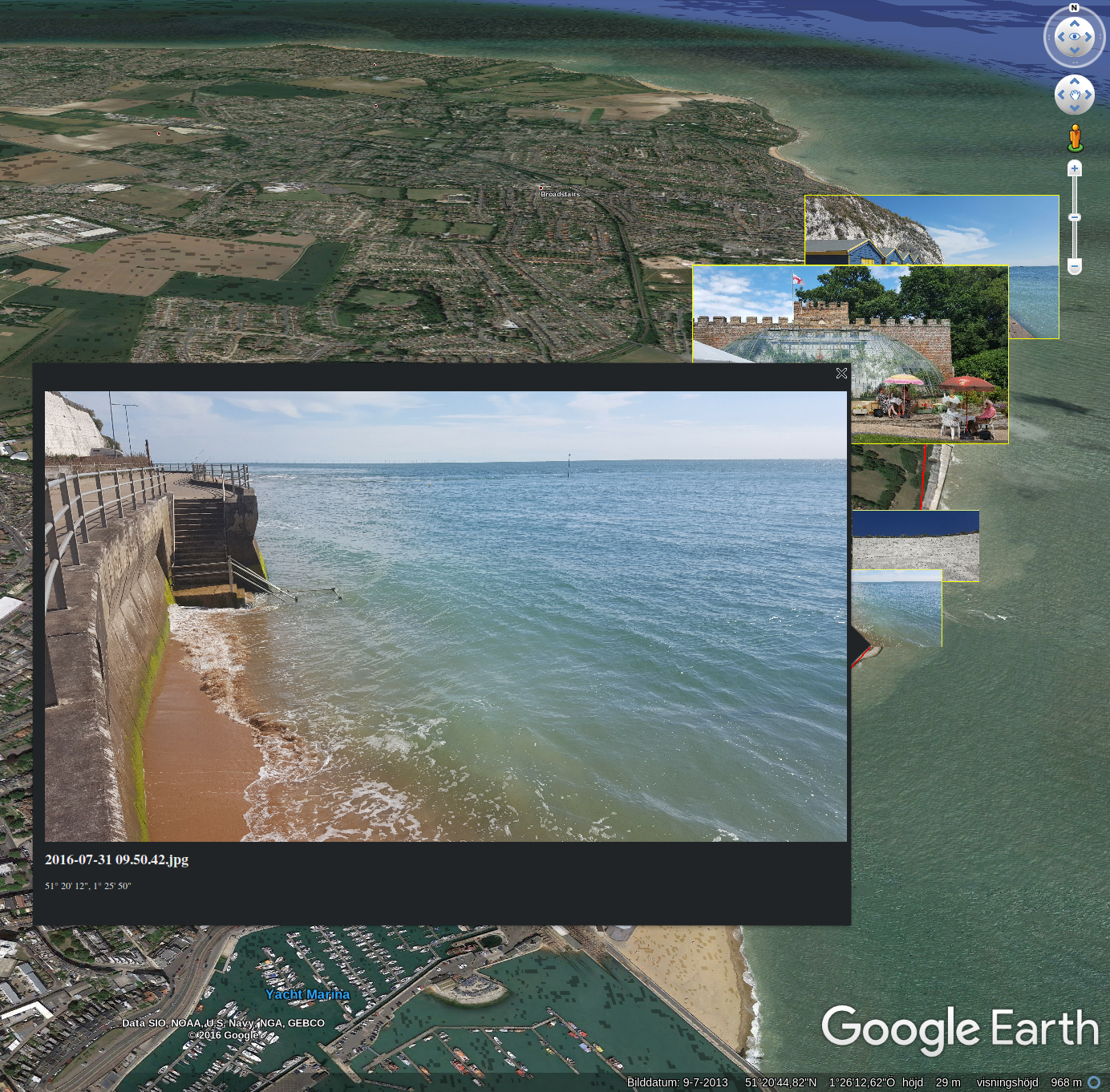
Mapollage is a photo kml generator for Google Earth.
Features
- Mapollage is free software licensed under the Apache Licence, Version 2.0
- Mapollage runs on Linux, MacOS and Windows
- Create kml folders by directory name, date pattern and regex
- Name placemarks by filename and date pattern
- Use a photo or a pin as a marker
- Dynamic description generator
- Customizable photo reference
- Draw path between placemarks
Looking for more details? Have a look at the documentation.
Download
Get your copy from the github release page.
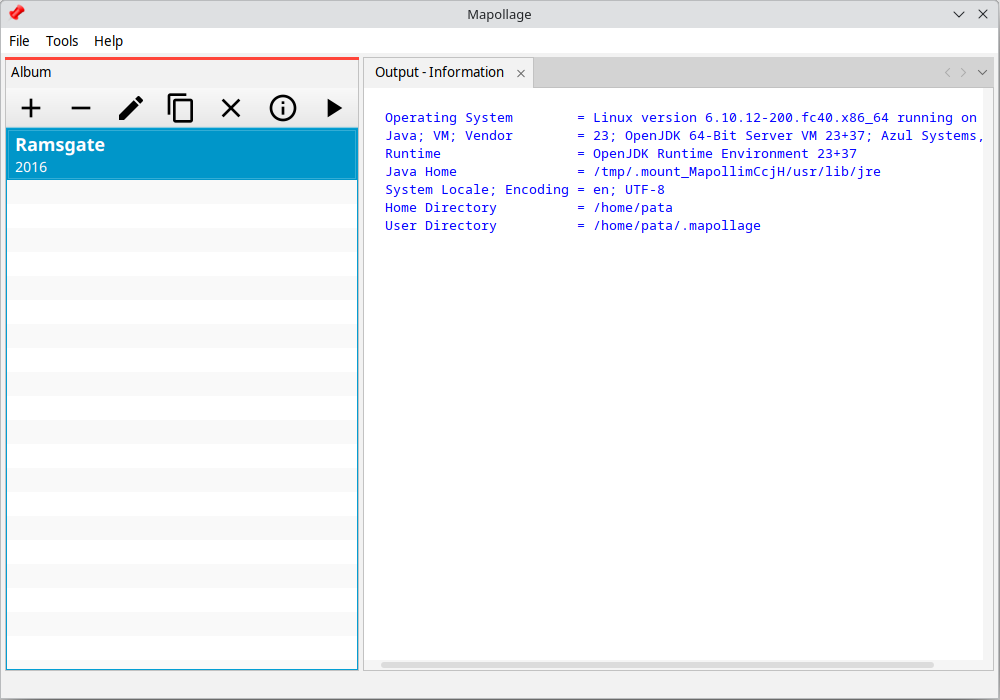
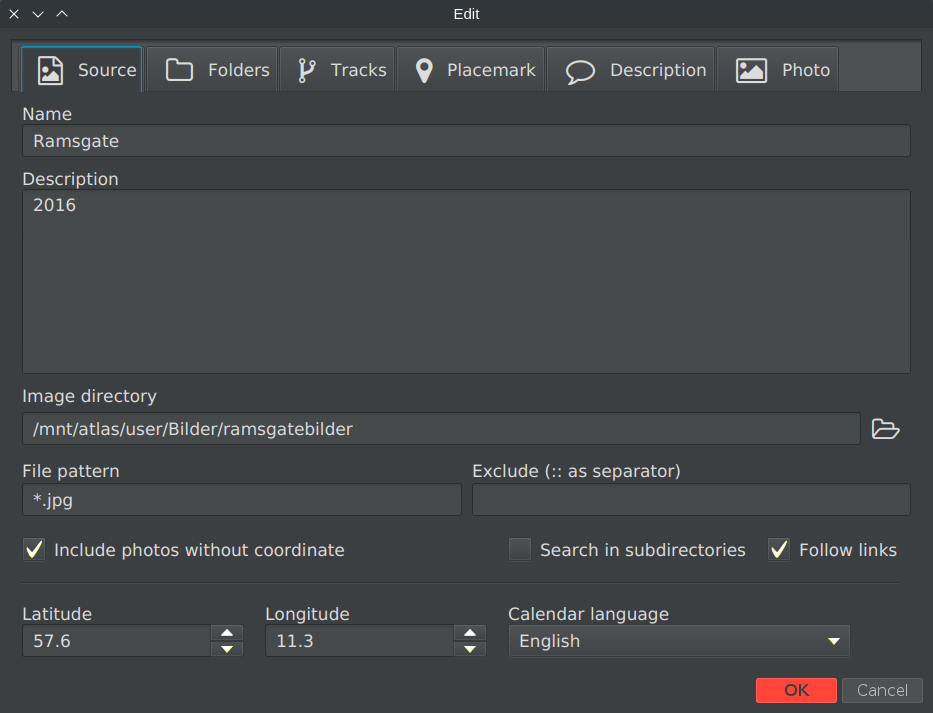
Screenshots
What do others say?
”That’s it. The newly created KML file can now be opened with Google Earth.”
– WebUpd8: Import your geotagged photos in Google Earth with Mapollage (kml file generator)
”Its simple interface and broad set of functions make it highly accessible to a wide range of users while still maintaining a high level of efficiency.”
– Softpedia: Quickly create a photo KML document from your geotagged images
Release history
Version 3.0.0 (2024-02-26)
- NEW: Some new features
- OPT: Major UI changes.
Version 2.1.0 (2021-02-26)
- OPT: Major UI changes.
Version 2.0.1 (2018-12-15)
- FIX: There was a major issue in the profile default settings related to folder structure and polygon generation. It is now resolved.
Version 2.0.0 (2018-07-15)
- OPT: Major UI changes, now using JavaFX.
Version 1.1.1 (2017-09-10)
- NEW: Added support for external description files.
Version 1.1.0 (2017-08-14)
- OPT: Improve configuration file management.
NOTE: Users upgrading from an earlier version should be aware of that the new profiles are stored in ~/.config/mapollage/mapollage2.profiles. The old ones are located in mapollage.profiles. This was done in order to improve configuration management. I’m sorry for any inconvenience.
Version 1.0.9 (2017-06-28)
- OPT: Update Darcula look and feel, fixes issues on MacOS.
- FIX: Corrected and added missing translations.
Version 1.0.8 (2017-05-14)
- OPT: Major UI improvements
Version 1.0.7 (2017-04-02)
- FIX: Tab enablement
- FIX: Don’t append information tab content
- FIX: Check for write permissions before file scan
- FIX: Create thumbnail directory after file scan
Version 1.0.6 (2017-03-25)
- OPT: Allow zoom values down to 1.0
- FIX: It’s now possible to cancel operation during file scan
- FIX: Exclude now respect OS case sensitiveness
- FIX: Handle images with no exif and percentage sign in filename correct
Version 1.0.5 (2017-03-12)
- NEW: Mapollage is now mac friendly
- NEW: Added menu mode switching (bar/button)
- NEW: Added progress indicator
- NEW: Added an option to open generated file after completion
- NEW: Added help menu link
- NEW: Added thumbnail as an image reference
- OPT: Improved default values
- FIX: Minor UI improvements and fixes
Version 1.0.4 (2017-03-04)
- NEW: Exclude file path containing filter.
- OPT: Improve messages and error handling
- OPT: Rotate thumbnails
- OPT: Add .jpg extension to thumbnails
- FIX: Create folders by regex
- FIX: Absolute image reference on windows
Version 1.0.3 (2017-02-26)
- NEW: Add path generation
- NEW: Create folder structure
- NEW: Add profile information tab
- FIX: Display bearing (if available) in description
Version 1.0.2 (2017-02-26)
Revoked
Version 1.0.1 (2017-02-23)
- NEW: Add (optional) timestamp to placemark
- FIX: Treat zero coordinate as null coordinate
Version 1.0.0 (2017-02-21)
- Initial release
Credit
Mapollage is built using the following open source libraries
and with an icon from jhnri4.
Can I use this to download location data from my iPhone?
It will use location data stored in your pictures taken by your phone.
This looks like it is perfect for the project I am working on, but I’m wondering if you have any information/examples on how the external description file works. Thanks!
I do too… 🙂
The idea behind the external description files was to search for them in the same directory as an image in question an get the description from there.
The only trace I can see of it now is the option that you are seeing, but nothing happens.
I’ll have to look in to this.
Hi Patrik, thanks for creating mapollage. I’ve been trying it out with some holiday pics, but no matter what i do, I can’t seem to make it work with the new online version of google maps. The thumbnails work fine if i create a kmz file with the kml and the thumbnails folder, but no matter what i try, the images that are supposed to be shown when you click a thumbnail won’t show up. Any ideas?
I can confirm I have the same situation here in the online version of google earth (not maps). I’ll have to do some further investigation before I can say anything specific.
Are you able to upload a kml/kmz generated by another program and get the expected behaviour?
Where to find .dmg file of Mapollage for MacOS?
There is no dmg-file available at this point so you have to use the jar-file directly.
Thank you!
Hi, thanks for this great tool!
It will possible to rotate the images based on the EXIF information while generating the output?
Thanks
Well, this one is kind of tricky…
Without changing the original file (and I don’t want to do that) I don’t know how to tell the renderer eg. Google Earth, Marble, how they should rotate the photo.
But there is a solution that I use:
1. Under program options, set a high enough value for thumbnail, I have mine at 1000.
2. Under the Photo tab, set file reference to thumbnail.
Hope it helps, Good luck!
I can not get the mapollage to open after I have downloaded the file, and I have do have the most up to date Java.
It’s hard to say with this limited information.
What operating system are you using?
Have you associated jar files with Java Run Time?
Can you unzip the downloaded file?
Have you tried downloading it again?
Can you run FileByDate also found on this site?
If you don’t mind using the command line you could try something like
java -jar /path/to/downloaded_and_unziped_jar/mapollage-1.0.9.jarWhen I am using your software the image heading is being ignored. how can I get this to properly place the image
Not every image contains that information but when it does, it only shows up in the description, if ‘Bearing’ is activated.
How would you like direction/bearing affect the placement of the image? Rotating them would render all south bound upside down, and I think we should avoid that. 🙂
How do you select the photos that you want to plot in Google Earth
According to the documentation 🙂
Before you can do that, be sure to create a profile first.
Hope it helps, Good luck!